The day I learned to preview every single eBook
You have spent months writing your book. You hit Publish on Amazon, open the sample on your phone, and your heart sinks. Chapter headings are in the wrong place, a table is cut in half, and your beautiful images look blurry.
After more than 8 years and over 3,000 book projects as a book formatter, I can tell you this happens far more often than you would think. The good news? It is completely avoidable. Amazon gives you two free ways to see exactly how your Kindle eBook will look before a single reader opens it.
In this guide, I will walk you through both of them, step by step:
- Kindle Previewer 3, a free desktop app from Amazon
- KDP’s Online Previewer, which you open with the “Launch Previewer” button while setting up your book
I will also share a few bonus methods and the exact checklist I use before any eBook goes live.
Why you should never skip the preview
A Kindle eBook is not like a PDF. It is “reflowable,” which means the text moves and wraps to fit whatever screen the reader is using: a small Kindle e-reader, a big Fire tablet or a phone. What looks perfect in Microsoft Word can look very different on a Kindle.
Here are the problems I see most often when authors skip the preview:
- Broken table of contents. Links that go nowhere, or chapters that are missing from the menu.
- Strange spacing. Huge gaps between paragraphs, or chapters that do not start on a new page.
- Blurry or tiny images. Pictures that looked fine on your computer can turn fuzzy on a high-resolution screen.
- Tables and charts that do not fit. Wide tables get cut off on phones and e-readers.
- Wrong fonts or symbols. Special characters showing up as empty boxes or question marks.
- Spelling mistakes you never spotted in your own file.
One bad formatting issue can lead to a one-star review saying “poorly formatted,” and that review stays on your book page. A ten-minute preview protects months of hard work.
Method 1: Preview your eBook with Kindle Previewer 3
Kindle Previewer 3 is a free desktop app made by Amazon. It is my favorite way to check a book, because you can test it before you even log in to KDP, and it shows the newest Kindle features like Enhanced Typesetting.
What it opens: EPUB, HTML, XHTML, OPF, KPF (from Kindle Create), DOC and DOCX files. Word files only work for English-language books, so if your book is in another language, use EPUB.
What it shows: how your book looks on Kindle e-readers, Fire tablets, and the Kindle apps for Android and iOS.
Computer you need: Windows 10 (64-bit) or newer, or a Mac running macOS 12 or newer (Intel or Apple Silicon).
Step 1: Download and install the app
Go to Amazon’s official Kindle Previewer page and click the download link for Windows or Mac. Install it like any other program.
Tip: always download it from Amazon’s page, never from a random software site. Amazon no longer supports old versions (2.94 and earlier), and they can give you wrong results.
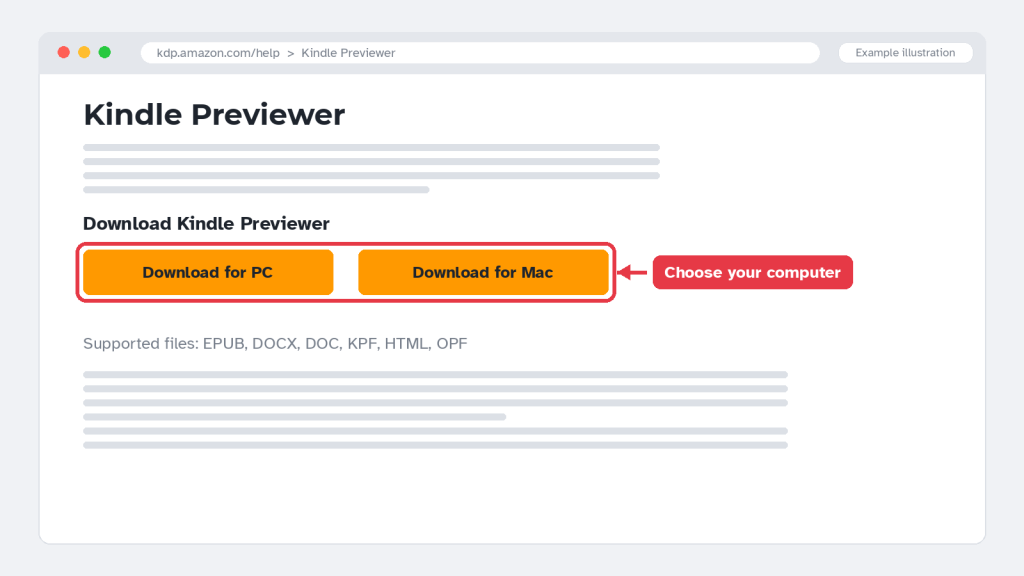
Choose the version for your computer (Windows PC or Mac).
Step 2: Open your book file
Open Kindle Previewer 3 and click Open Book on the welcome screen (or go to File > Open Book). Choose your EPUB, DOCX or KPF file. The app converts it, which usually takes from a few seconds to a minute.
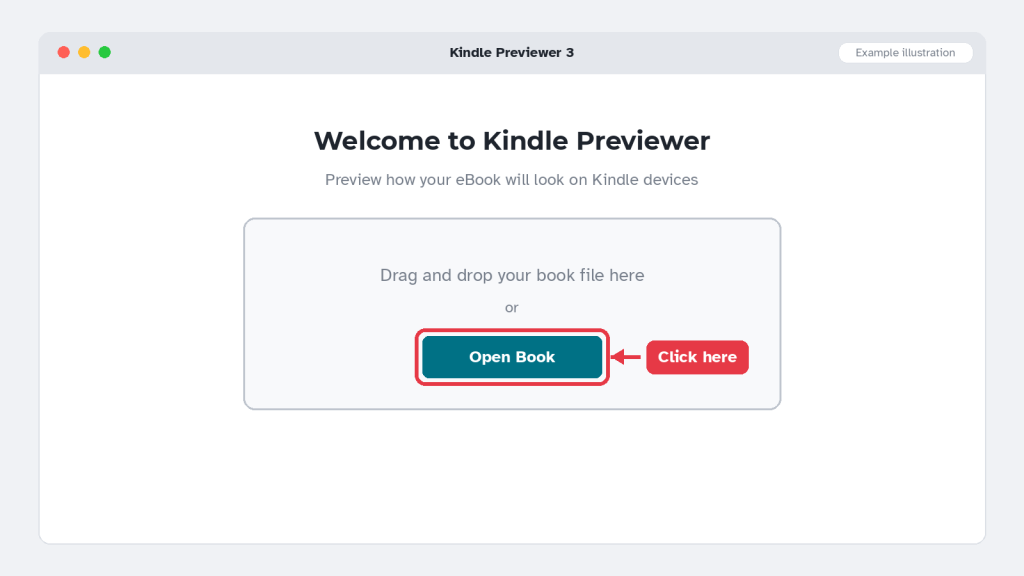
Click Open Book, or simply drag and drop your file into the window.
Step 3: Switch between devices
On the left side, find the Device Type options. Switch between Tablet, Phone and Kindle E-reader, and turn the screen between portrait and landscape. Check each one, because a table that fits on a tablet might not fit on a phone.
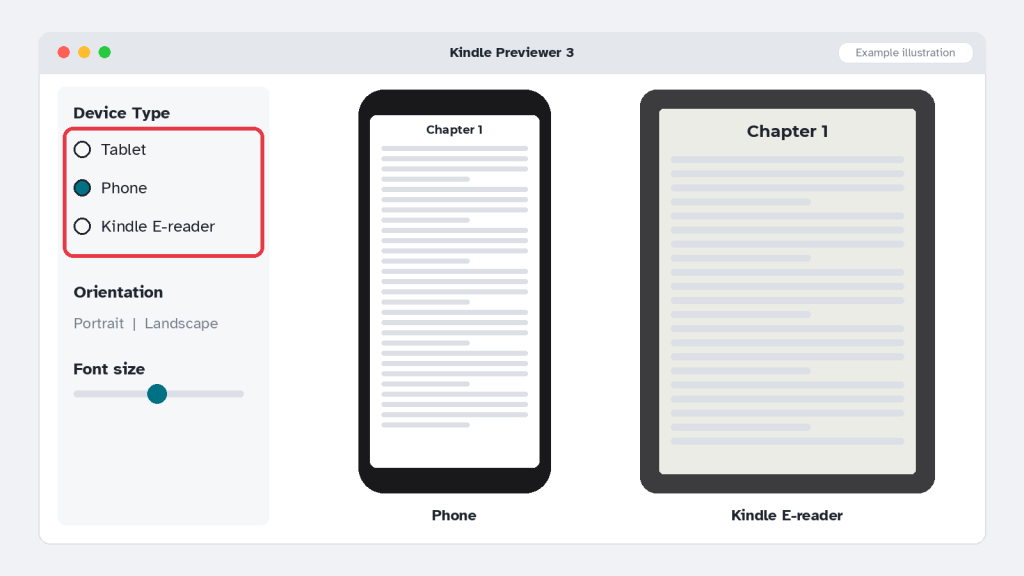
Switch between Tablet, Phone and Kindle E-reader to check every screen size.
Step 4: Change the font size
Readers often make the text bigger. Increase the font size in the preview settings and check that your headings, images and tables still look right at large sizes.
Step 5: Test your table of contents and links
Open the Table of Contents panel and click each chapter. Every link should take you to the right place. Click any web links inside your book too.
Step 6: Let it flip through the whole book
This is a hidden gem. In the Navigation section, turn on Auto-Advance View, and Kindle Previewer will flip through your entire book page by page. You can pause it or change the speed. It is the easiest way to spot a problem buried on page 147.
Step 7: Check that Enhanced Typesetting is supported
Go to View > Book Information. If Enhanced Typesetting shows as Supported, your book will get Kindle’s better layout, fonts and features for readers.
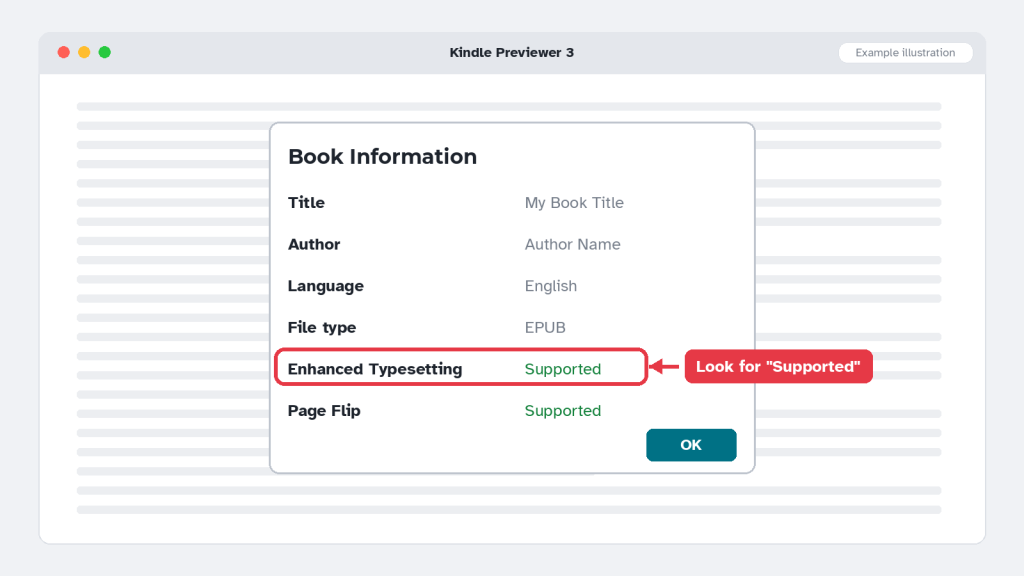
If Enhanced Typesetting says Supported, your book gets Kindle’s best reading features.
Found a problem? Fix it in your original file (Word, EPUB or Kindle Create), save it, and open it again in Kindle Previewer. Repeat until everything looks right.
Method 2: Preview your eBook on KDP with “Launch Previewer”
If you are already setting up your book on Kindle Direct Publishing (KDP), you do not need to install anything. Amazon’s Online Previewer opens right in your browser and shows your book after Amazon has converted it, which is the closest thing to what readers will actually see.
It also has a built-in quality check that flags spelling mistakes and low-quality images for you. Your book does not need to be published to use it; you only need to upload your manuscript.
Step 1: Upload your manuscript
Sign in to KDP and go to your Bookshelf. Click the “…” button next to your book (or create a new Kindle eBook) and choose Edit eBook content. In the Manuscript section, click Upload eBook manuscript and choose your file.
Amazon converts your file, which can take five to seven minutes. Grab a cup of tea while you wait.
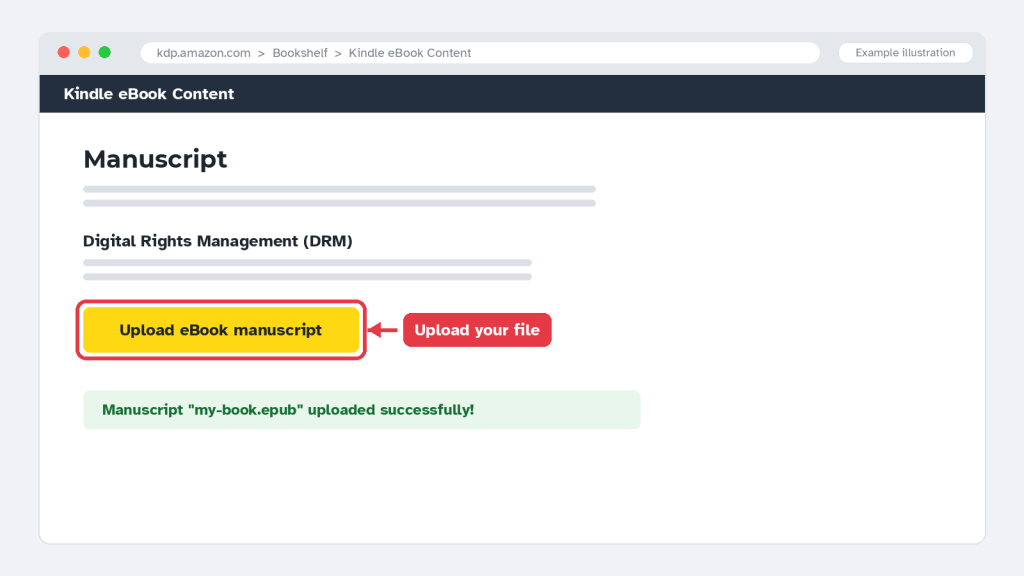
Upload your file in the Manuscript section and wait for the success message.
Step 2: Click “Launch Previewer”
Scroll down to the Kindle eBook Preview section and click Launch Previewer. Your book opens in a new preview window.
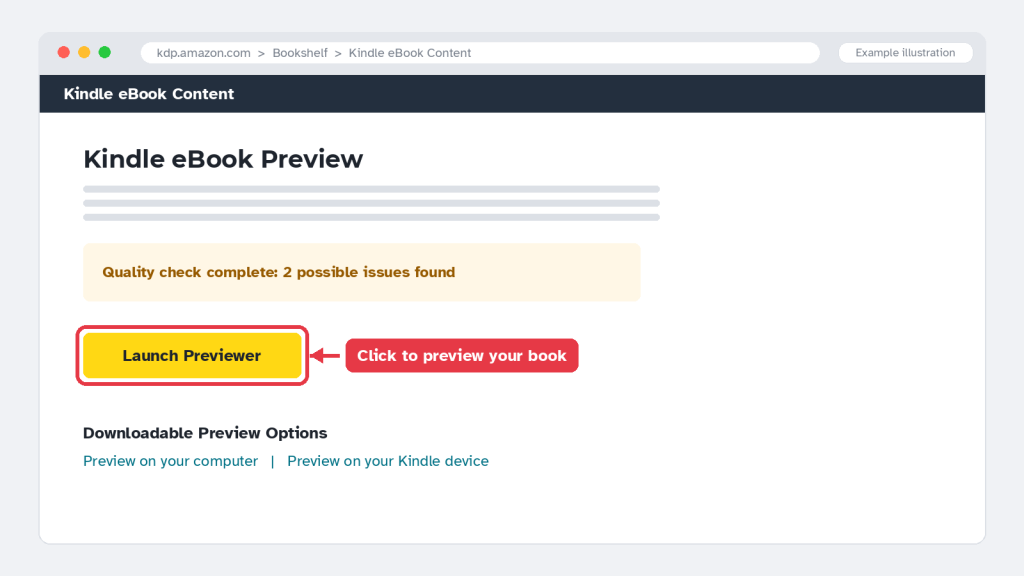
The Launch Previewer button sits in the Kindle eBook Preview section.
Step 3: Check every device
Use the device options at the top to switch between Tablet, Phone and Kindle E-reader. Tablet and phone views show your book in color, while Kindle E-reader view shows it in grayscale (black and white), just like a real Kindle. This is a great moment to make sure your colored images still make sense in black and white.
Don’t worry if you don’t see your title and author name in the preview. Amazon adds those details automatically when your book is published.
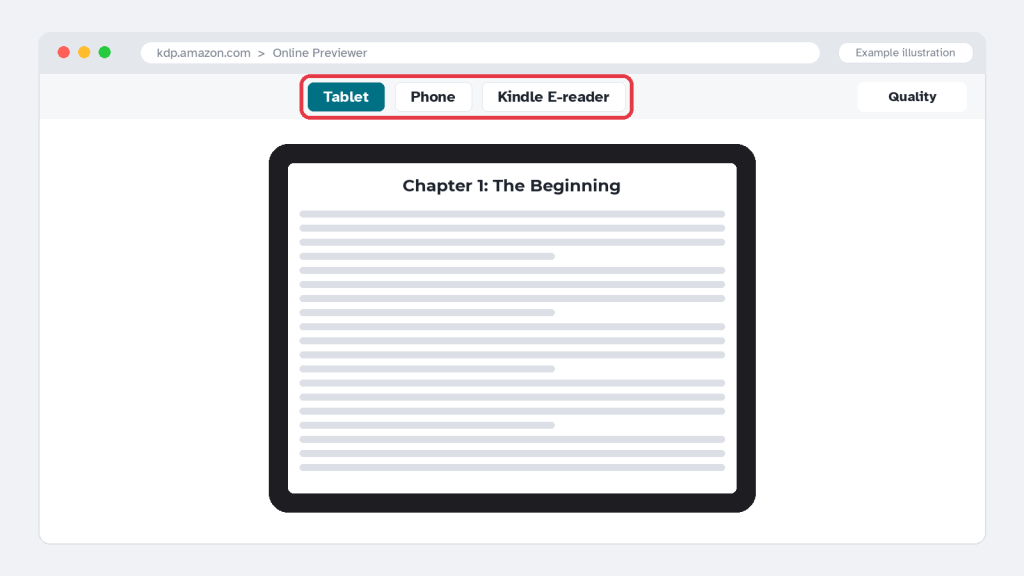
Use the device options at the top to switch between tablet, phone and e-reader.
Step 4: Review the quality check panel
If Amazon finds issues, a Quality panel opens on the right side of the previewer. You can open it anytime with the Quality button in the top right corner. It shows:
- Spelling issues. You can accept Amazon’s suggested spelling or type your own fix, then click Upload changes.
- Image issues. Images that may look blurry on Kindle devices, with the recommended image quality.
- Email Issues to send the full list to your KDP email, and Ignore All if you are sure everything is correct.
Note: the spelling and image check works for English-language eBooks with a reflowable layout. For other problems, fix them in your original file and upload it again.
The Quality panel lists spelling and image issues so you can fix them before publishing.
Step 5: Publish with confidence
Once your preview looks right on all three devices, close the previewer, click Save and Continue, and finish your pricing page. You can come back and use Launch Previewer any time you upload a new version.
Kindle Previewer 3 vs. KDP Online Previewer: which should you use?
My honest advice: use both. Kindle Previewer 3 while you are still formatting, and KDP’s Online Previewer as your final check right before you publish.
| Kindle Previewer 3 | KDP Online Previewer | |
|---|---|---|
| Cost | Free | Free |
| Where it runs | Desktop app (Windows or Mac) | In your web browser |
| KDP account needed | No | Yes |
| Install needed | Yes | No |
| File formats | EPUB, DOCX, DOC, KPF, HTML, OPF | Whatever you upload to KDP |
| Devices shown | Kindle E-reader, Fire tablet, Android and iOS apps | Tablet, phone, Kindle E-reader |
| Spelling and image check | No | Yes (English, reflowable books) |
| Auto-flip through the book | Yes (Auto-Advance) | No |
| Best for | Testing and fixing while formatting | Final check right before publishing |
Bonus: 3 more ways to see your eBook
1. Download a preview file from KDP
In the same Kindle eBook Preview section on KDP, look for Downloadable Preview Options and choose Preview on your computer. This gives you a file of your converted book to open in Kindle Previewer 3. It is a great way to see Amazon’s converted version offline.
2. Read it on your own Kindle or phone
Nothing beats holding the real thing. Amazon’s Send to Kindle service lets you email an EPUB file to your Kindle library, and it appears on your Kindle device and in the Kindle app on your phone. Reading a few chapters on a real screen often reveals things you miss on a computer.
3. Use the previewer inside Kindle Create
If you format your book with Amazon’s free Kindle Create tool, it has its own built-in previewer. Amazon also recommends it, or Kindle Previewer 3, for textbooks with interactive features, because those features do not show in KDP’s Online Previewer.
My 10-point checklist before you hit Publish
This is the same list I go through for every client book. Check each one in the previewer:
- ✔ The table of contents opens and every chapter link works
- ✔ Every chapter starts on a new page
- ✔ Chapter titles and headings look the same throughout the book
- ✔ No huge blank gaps or missing paragraph spacing
- ✔ Images are sharp and not cut off, on all three devices
- ✔ Tables and charts fit on a phone screen
- ✔ Colored images still make sense in black and white (Kindle E-reader view)
- ✔ Text still looks good at a large font size
- ✔ All web links inside the book open the right page
- ✔ No spelling mistakes flagged in KDP’s quality check
Frequently asked questions
Is Kindle Previewer 3 free?
Yes. It is a free app from Amazon. Download it only from Amazon’s official Kindle Previewer page.
Do I need to publish my book to use the Online Previewer?
No. You only need to upload your manuscript on the eBook Content page. You can preview as many times as you like before you publish.
Can I open a Word document in Kindle Previewer 3?
Yes, DOC and DOCX files open directly, but only for English-language books. For other languages, convert your book to EPUB first.
Why don’t I see my title and author name in the KDP preview?
That is normal. Amazon adds them automatically when the book is published.
Why does my book look black and white in one view?
The Kindle E-reader view shows grayscale, because most Kindle e-readers do not have color screens. Tablet and phone views show color.
What file format does Amazon recommend for eBooks?
Amazon accepts several formats, including DOCX, EPUB and KPF (from Kindle Create). See Amazon’s list of supported eBook formats. For complex books, a well-made EPUB usually gives the cleanest result.
Final thoughts
Previewing your Kindle eBook takes about ten minutes, and it can save you from bad reviews, refunds and a lot of stress. Start with Kindle Previewer 3 while you format, finish with KDP’s Launch Previewer right before you publish, and read a chapter or two on a real device if you can.
Your readers will never notice good formatting, and that is exactly the point. They will simply enjoy your book.
Need help formatting your Kindle eBook?
If your preview shows problems you can’t fix, or you would rather leave the technical side to a professional, I can help. I have 8 years of experience on Fiverr and over 3,000 completed book projects, preparing books for Amazon KDP, IngramSpark, Lulu and other platforms.
My services include:
- Kindle eBook formatting (EPUB and reflowable layouts)
- Paperback and hardcover interior formatting
- Children’s book layout
- Book cover design and resizing for print
- Fixing books rejected by KDP
- Help with uploading and publishing on Amazon
Contact me on Fiverr: fiverr.com/inamulhaq2
Send me a message with your book details, and I will reply with a quick, friendly quote.