# How to Upload and Publish a Paperback Book on Amazon KDP – Step-by-Step Guide
Publishing a paperback book on Amazon has become much easier with **Kindle Direct Publishing (KDP)**. You don’t need a traditional publisher or a large upfront printing investment. With KDP, you can upload your book files, choose your printing options, set your price, and make your book available for customers on Amazon.
However, the KDP publishing process has several important steps, and a small mistake in your manuscript, cover, book information, or pricing can cause delays or require you to make corrections.
This guide explains **how to upload and publish a paperback book on Amazon KDP step by step**, from preparing your files to submitting your book for publication.
—
## Before You Start: What You Need
Before opening KDP, make sure you have the following information and files ready:
* Your Amazon KDP account
* Your completed book manuscript/interior
* Your paperback cover
* Book title
* Subtitle, if applicable
* Author name
* Contributors, if applicable
* Book description
* Keywords
* Categories
* ISBN, if required
* Publication information
* Book trim size
* Ink and paper choice
* Bleed or no-bleed setting
* Cover finish
* Selling territories/rights
* Book list price
For a professional paperback, your interior and cover should be properly formatted before uploading them. KDP supports PDF manuscripts for books with bleed, while no-bleed manuscripts can also be uploaded in formats such as DOC, DOCX, RTF, HTML, or TXT.
—
# Step 1: Sign In to Amazon KDP
Go to the Amazon Kindle Direct Publishing website and sign in with your Amazon account.
If you don’t already have a KDP account, you will need to complete your KDP account setup, including the required author/publisher, payment, and tax information.
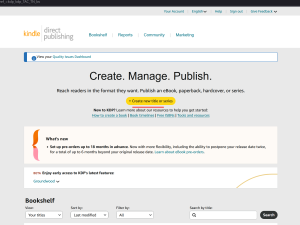
Once you are inside KDP, you will see your **Bookshelf**.
Your Bookshelf is where you create, manage, and update your books.
# Step 2: Create a New Paperback Book
From your KDP Bookshelf:
1. Click **+ Create**.
2. Select **Paperback**.
3. KDP will open the paperback setup process.
The publishing process is generally divided into three main areas:
1. **Paperback Details**
2. **Paperback Content**
3. **Paperback Rights & Pricing**
KDP uses the information you enter during this process to create your Amazon book detail page.
—
# Step 3: Enter Your Paperback Book Details

The first section is where you enter the basic information about your book.
## Language
Select the primary language of your book.
For example:
* English
* Spanish
* French
* German
Choose the language that matches the actual content of your book.
—
## Book Title
Enter your exact book title.
Make sure the title matches the title shown on your cover.
For example:
**The Beginner’s Guide to Gardening**
If your book has a subtitle, enter it in the subtitle field.
### Important:
Double-check your title and subtitle before publishing. Some book details can be difficult or restricted to change after publication.
—
## Series Information
If your book belongs to a series, enter the series information.
For example:
**Series Name:** Healthy Aging Essentials
If the book is not part of a series, you can leave the series information blank.
—
## Edition Number
If this is the first edition of your book, you normally don’t need to enter an edition number.
If you are publishing a new edition, enter the appropriate edition information.
—
# Step 4: Enter the Author Name
Enter the name that should appear on your Amazon book page.
This should normally match the author name displayed on the book cover.
For example:
**Author:** John Smith
You can also add contributors if your book has:
* Illustrators
* Editors
* Translators
* Foreword authors
* Photographers
* Other contributors
Make sure names and roles are entered accurately.
—
# Step 5: Write Your Book Description
The book description is the text customers see on your Amazon book listing.
Use this section to explain:
* What the book is about
* Who the book is for
* What readers will learn or experience
* The main benefits or features
* What makes the book useful or interesting
For example, if you are publishing a planner, you might explain its purpose, features, sections, and intended audience.
### Tip:
Don’t simply copy the back-cover text unless it is suitable as an Amazon product description.
Your Amazon description should be written to clearly explain the book to potential buyers.
—
# Step 6: Enter Publishing Rights
KDP will ask about your publishing rights.
If you own the rights to the book, select the appropriate option indicating that you hold the necessary publishing rights.
Do not publish material that you don’t have permission to publish.
If the book contains content created by someone else, make sure you have the appropriate rights or licenses.
—
# Step 7: Choose Your Primary Audience and Age Information
Depending on the type of book, KDP may ask for information about the intended audience.
For children’s books, age and grade information can be particularly important.
Enter the information that accurately describes your book.
Do not select children’s age ranges simply to try to reach a particular category if the book isn’t actually intended for children.
—
# Step 8: Select Your Book Categories
KDP allows you to select categories that help Amazon understand what your book is about.
Choose categories that are genuinely relevant to your book.
For example:
* Self-Help
* Business
* Education
* Cooking
* Health
* Crafts & Hobbies
* Children’s Books
* Religion & Spirituality
The exact categories available can vary depending on your book details and marketplace.
### Important:
Choose categories based on the actual content of your book rather than selecting unrelated categories just because they appear popular.
—
# Step 9: Enter Your Keywords
KDP allows you to enter search keywords that can help Amazon understand what readers may search for when looking for your book.
Think about:
* Topics
* Problems your book solves
* Target audience
* Book type
* Subject matter
* Relevant phrases
* Reader interests
For example, a gardening book might use phrases such as:
* beginner gardening
* vegetable gardening
* home garden guide
* growing vegetables
* gardening for beginners
Avoid misleading keywords or keywords that have nothing to do with your book.
—
# Step 10: Choose Your ISBN
For a paperback, you will need to select an ISBN option.
Depending on your circumstances and the options available in your marketplace, you may be able to:
* Use a free KDP ISBN, where available
* Use your own ISBN
If you purchased your own ISBN, enter the ISBN information exactly as provided by your ISBN agency.
Remember that different formats generally require separate ISBNs. For example, a paperback and hardcover edition can have different ISBNs.
—
# Step 11: Set the Publication Date
If KDP asks you to enter a publication date, provide the appropriate date according to your publishing situation.
If you are publishing a new book, make sure the date you enter is accurate.
—
# Step 12: Select Your Print Options
Now you will move to the **Paperback Content** section.
This is one of the most important parts of the KDP setup.
You will select options such as:
* Ink and paper type
* Trim size
* Bleed
* Cover finish
KDP provides different combinations of black-and-white and color printing options, along with different paper choices.
—
# Step 13: Choose Ink and Paper Type
You will need to decide how the interior of your book should be printed.
Common choices include:
### Black Ink & White Paper
Suitable for many:
* Novels
* Non-fiction books
* Workbooks
* Journals
* Guides
### Black Ink & Cream Paper
Often used for books where a traditional book-paper appearance is preferred.
### Color Ink & White Paper
Suitable for books that require color images or illustrations.
For example:
* Children’s picture books
* Coloring books
* Cookbooks
* Art books
* Photography books
* Illustrated guides
KDP notes that color books use white paper, and printing costs are generally higher for color than black-and-white books.
—
# Step 14: Choose Your Trim Size
Trim size means the physical dimensions of the printed book.
Some common paperback sizes include:
* 5″ × 8″
* 5.25″ × 8″
* 5.5″ × 8.5″
* 6″ × 9″
* 7″ × 10″
* 8″ × 10″
* 8.5″ × 11″
The correct size depends on your book.
For example:
**6″ × 9″** is commonly used for novels and many non-fiction books.
**8.5″ × 11″** can be useful for workbooks, activity books, coloring books, and other larger-format books.
Make sure the interior manuscript and cover were designed for the exact trim size you select.
—
# Step 15: Select Bleed or No Bleed
This is an important technical setting.
### No Bleed
Choose no bleed when your interior content stays inside the page margins and does not extend to the edges of the page.
### Bleed
Choose bleed when images, backgrounds, or other elements extend all the way to the edge of the printed page.
If even one interior page requires bleed, KDP recommends selecting the bleed option and uploading the manuscript as a PDF.
Selecting the wrong setting can cause formatting or printing problems.
—
# Step 16: Choose the Cover Finish
KDP offers paperback cover finishes such as:
* Matte
* Glossy
The choice depends on the design and type of book.
For example, a glossy finish may work well for some colorful or image-heavy covers, while matte can provide a more subdued appearance.
—
# Step 17: Upload Your Paperback Manuscript
Now it is time to upload the interior of your book.
Find the **Manuscript** section and click:
**Upload paperback manuscript**
Select your prepared manuscript file from your computer.
KDP will process the file and display an upload confirmation when it has been successfully uploaded.
### Before uploading, check:
* Correct trim size
* Correct page size
* Correct margins
* Correct page numbering
* No missing pages
* No unwanted blank pages
* Correct fonts
* Correct images
* Correct headers and footers
* Correct table of contents
* Correct chapter order
* Correct bleed settings
For professional print books, PDF is generally the safest choice when you have a print-ready interior.
—
# Step 18: Upload Your Paperback Cover
Your paperback cover should be prepared as a **single complete cover file** containing:
**Back Cover + Spine + Front Cover**
KDP requires a print-ready paperback cover PDF when you upload your own cover file.
The cover dimensions depend on:
* Trim size
* Page count
* Paper type
* Ink type
* Bleed
Therefore, don’t simply resize an old cover to a different book size.
Use the appropriate KDP cover template or calculator when creating the cover.
### Important Cover Tip
The spine width depends on the book’s page count and paper type.
Also, KDP currently requires a paperback to have at least **79 pages** for spine text. If the book has fewer than 79 pages, don’t put spine text on the cover.
—
# Step 19: Check Your Barcode
If you use your own ISBN, check your cover and barcode requirements carefully.
If you don’t provide a barcode, KDP can automatically place one on the back cover in applicable situations.
Make sure important back-cover text and graphics don’t interfere with the barcode area.
—
# Step 20: Launch the KDP Print Previewer
This is one of the most important steps.
After uploading your manuscript and cover, launch **Print Previewer**.
KDP’s Print Previewer lets you examine how the book is expected to look when printed and identifies errors that need to be corrected before submission.
Do not skip this step.
—
# Step 21: Check Every Page
Don’t only look at the first few pages.
Review the entire book.
Look for:
* Cut-off text
* Incorrect margins
* Images extending incorrectly
* Blank pages
* Missing pages
* Incorrect page numbers
* Headers or footers in the wrong position
* Text too close to the trim edge
* Formatting problems
* Image quality issues
* Incorrect chapter starts
* Cover alignment problems
If you find an error, go back to your original manuscript or cover file, correct it, and upload the revised file.
KDP recommends reviewing the book carefully in Previewer before proceeding.
—
# Step 22: Order a Physical Proof Copy
For many books, especially professionally designed books, ordering a physical proof can be very useful.
A digital preview cannot always show exactly how the printed book will feel and look in your hands.
A physical proof allows you to check:
* Actual colors
* Paper appearance
* Cover finish
* Text size
* Margins
* Image quality
* Spine alignment
* Overall book appearance
KDP states that ordering a proof is optional, but it can help you review the physical book before publication.
—
# Step 23: Go to Rights & Pricing
Once your manuscript and cover have passed the required checks, continue to **Rights & Pricing**.
Here you will select your distribution rights and set your book price.
—
# Step 24: Select Your Territories and Rights
Choose the territories where you have the rights to distribute your book.
If you own worldwide rights, select the appropriate worldwide option when available.
Only claim rights that you actually have.
—
# Step 25: Set Your Paperback List Price
Enter the selling price for your paperback.
KDP calculates printing costs based on factors such as:
* Page count
* Trim size
* Ink type
* Paper type
* Amazon marketplace
KDP’s print-book royalty calculation is based on the applicable royalty rate multiplied by the tax-exclusive list price, minus printing costs.
Before choosing your price, consider:
* Your book’s production cost
* Similar books in your category
* Your target audience
* Your desired royalty
* The price customers may expect for this type of book
—
# Step 26: Review the Estimated Royalty
KDP will show the estimated royalty information based on the price and distribution options you select.
Review the numbers before submitting your book.
Remember that the royalty you receive is not simply the full selling price because printing costs and other applicable calculations are taken into account.
—
# Step 27: Submit Your Paperback for Publication
Once everything is correct, submit your book for publication by clicking the appropriate **Publish Your Paperback Book** button.
Your book will then enter Amazon KDP’s review process.
KDP reviews the submitted files and book information before making the book available for sale.
If KDP identifies an issue, you may receive instructions explaining what needs to be corrected.
—
# Step 28: Wait for Your Book to Become Available
After submission, your book does not necessarily appear for sale immediately.
KDP needs to process and review the book.
Once the book is approved and published, Amazon will create the book’s product/detail page.
You can then use the Amazon link to share your book with readers, friends, followers, or your audience.
—
# Common KDP Paperback Mistakes to Avoid
Before clicking the publish button, check these common problems:
### 1. Wrong Trim Size
Your manuscript, cover, and KDP print settings should all correspond to the same trim size.
### 2. Wrong Bleed Setting
If your interior contains elements that reach the page edge, make sure your manuscript and KDP settings are prepared for bleed.
### 3. Incorrect Cover Dimensions
The cover must account for the front cover, back cover, spine, and required bleed.
### 4. Adding Spine Text to a Short Book
Paperback spine text requires sufficient page count. KDP currently requires at least 79 pages for spine text.
### 5. Low-Quality Images
KDP recommends high-resolution images, with 300 DPI commonly specified for submitted images.
### 6. Missing Pages
Check the complete manuscript before uploading.
### 7. Incorrect Book Information
Your title, subtitle, author name, and other metadata should be consistent with the book and cover.
### 8. Skipping Print Previewer
Never assume that the uploaded PDF will look exactly as expected in print.
Always inspect the complete book in Print Previewer.
### 9. Not Checking a Physical Proof
For an important book, consider ordering a proof before making the final book available to customers.
—
# KDP Paperback Publishing Checklist
Before publishing, use this quick checklist:
☐ KDP account is ready
☐ Book title is correct
☐ Subtitle is correct
☐ Author name is correct
☐ Book description is complete
☐ Categories are relevant
☐ Keywords are relevant
☐ ISBN information is correct
☐ Trim size is correct
☐ Ink and paper are correct
☐ Bleed setting is correct
☐ Cover finish is selected
☐ Interior manuscript is uploaded
☐ Full paperback cover is uploaded
☐ Cover dimensions are correct
☐ Barcode area is checked
☐ Print Previewer has been reviewed
☐ Every page has been checked
☐ Physical proof has been considered
☐ Publishing rights are correct
☐ Book price is checked
☐ Estimated royalty is reviewed
☐ Final submission is completed
—
# Final Thoughts
Publishing a paperback on Amazon KDP is straightforward once you understand the process, but **preparing the book correctly is just as important as uploading it**.
A professional-looking book needs more than simply uploading a Word document and a cover. The manuscript should be properly formatted for the selected trim size, margins and page layout should be checked, images should be prepared correctly, and the cover should be calculated according to the final page count and printing specifications.
If you are publishing your first book, take your time during the Previewer stage and carefully inspect every page before submitting the book.
Amazon KDP provides the publishing platform, but the quality of your manuscript and cover files can have a major impact on how professionally your book appears to readers.
—
# Need Professional Book Formatting or Design?
If you already have your manuscript but need help preparing it for Amazon KDP, I provide professional **book formatting, interior layout design, paperback formatting, Kindle formatting, and book cover design** services.
I can help prepare your book files for KDP and other publishing platforms.
**Hire me on Fiverr for professional book formatting and design:**
https://www.fiverr.com/inamulhaq2
Whether you have a novel, nonfiction book, workbook, journal, planner, children’s book, or another type of publication, your files should be properly prepared before uploading them to KDP.